How to Install and Configure VIDIZMO App for SharePoint
VIDIZMO allows you to integrate your existing SharePoint portal with VIDIZMO so that users can browse and stream digital content from within your SharePoint site.
For a detailed overview, see Understanding VIDIZMO-SharePoint Integration.
Prerequisites
- Contact VIDIZMO Support to have the VIDIZMO app available for installation from within your SharePoint App Catalog.
- You must be a SharePoint Site Global Administrator and a VIDIZMO Portal user.
- You must enable anonymous access on your SharePoint portal for the VIDIZMO site.
- Your VIDIZMO site in SharePoint must be secured with SSL (HTTPS).
- The recommended SharePoint versions are 2013, 2016, and 2019.
- Each SharePoint domain you install the VIDIZMO app on requires its own authorization key. A SharePoint portal at
xyz.comwill have a different key from a sub-domain atabc.xyz.com. - The authorization key is tied to the user who generated it. All automated administrative functions performed by the VIDIZMO app in SharePoint (such as user profile and group synchronization) are done on behalf of that user.
VIDIZMO Configuration
Generate API Token
- In VIDIZMO, select the menu icon in the top-left corner to open the navigation pane.
- Expand the Admin section and select Portal Settings.
- Go to Apps > Content Management System.
- Select the settings icon on the SharePoint app.
- In the SharePoint authorization dialog, select Generate API Token.
- Enter the following:
- Domain
The domain of your SharePoint portal. Exclude the protocol (such as
http://) and port numbers (such as8080) from the URL. - Expiry The expiration date for this token. After this date, your SharePoint portal will no longer be authorized to run the VIDIZMO app.
- Domain
The domain of your SharePoint portal. Exclude the protocol (such as
- Select Add to generate the API key.
- Select the Copy icon next to your API key to save it for use during the SharePoint configuration. Then select Close.
- Back on the Content Management System page, turn on the toggle for the SharePoint app to activate it.
SharePoint Configuration
Install VIDIZMO App
- Add the VIDIZMO app from your organizational App Catalog. For on-premises SharePoint (2013, 2016, 2019, and subscription-based versions), see Add Apps for SharePoint to a SharePoint site. For Microsoft 365, see Manage Apps using the Apps site.
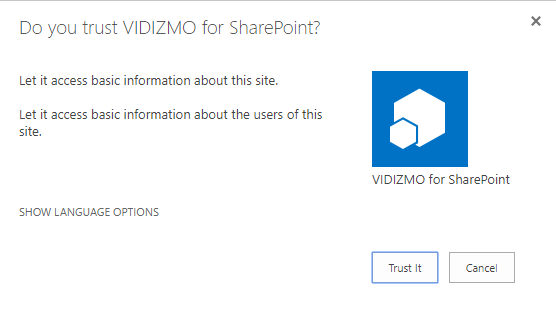
- When prompted, select Trust It to grant the VIDIZMO app access to your SharePoint site.
Configure App Settings
- Select the installed VIDIZMO app. You will be prompted to sign in using the credentials of a member of the SharePoint site.
NOTE: All users with Edit rights on the SharePoint site can configure the VIDIZMO app. For more details, see Default Permission Levels and User Permissions.
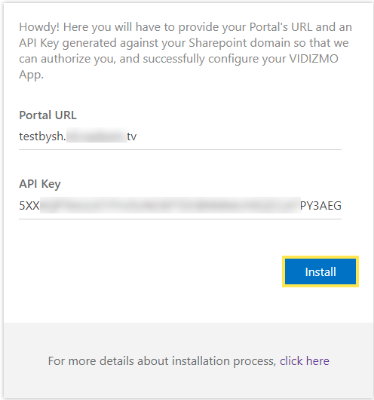
- On the Configure VIDIZMO App page, enter the following:
- Portal URL The URL of your VIDIZMO Portal that you want to use from within your SharePoint site.
- API Key The API authorization key you generated in your VIDIZMO Portal against your SharePoint domain.
- Select Install.
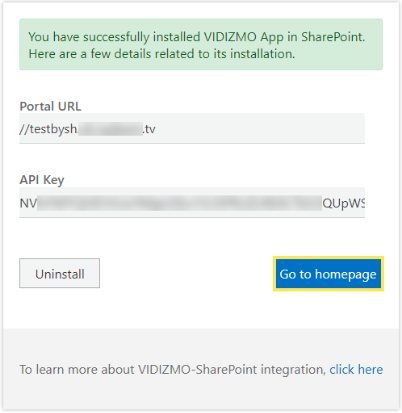
- After successful installation, you will see a confirmation. Select Go to Homepage to start using the VIDIZMO Portal within your SharePoint site.
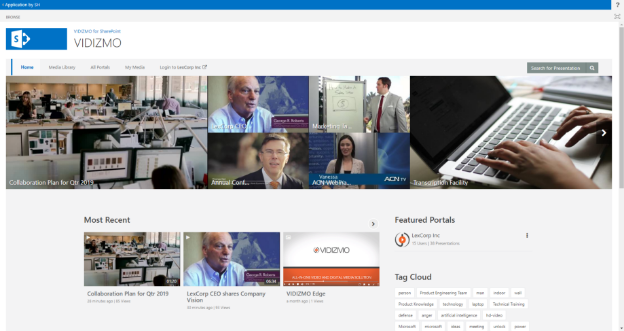
- Your VIDIZMO Portal is now available from within your SharePoint site.
Troubleshooting
- If the VIDIZMO app is not working, verify that you have activated the SharePoint app toggle in your VIDIZMO Portal under Apps > Content Management System. See Generate API Token for details.